Lab 1A
Prelab
I downloaded Arduino IDE and installed all the relevant libraries and boards.
Lab Tasks
I hooked up the Artemis board to my computer and made sure that the board was detected and I ran through the example files as defined in the lab instructions. I will outline the "results" of running my exmaple files below.
Blink
Running the example Blink file, video below of my board executing the blink example.
Serial
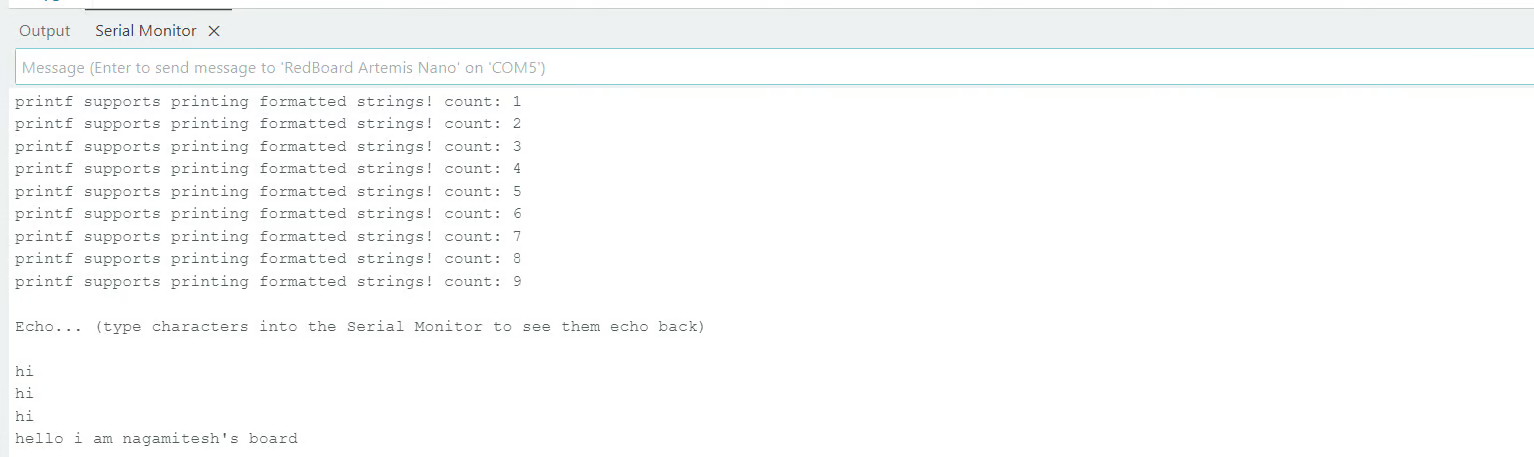
Running the example serial file, and the image below shows the serial output of the example code.
Analog Read
Here I am running the Analog Read example, and during the test I'm putting my finger on the CPU which is showing an increase in the temperature counts due to the increase in the temperature that the CPU is seeing.
Microphone Output
In this section I ran the microphone output example code from the arduino library and I tested both modulating the pitch of my voice and whistling to make the frequency increase. I've included a video below of my serial monitor output.
Lab 1B
Prelab
Summary of BLE
I read through the linked page from Arduino about BLE and the main thing that I learned is that BLE is more of a passive system that has peripheral devices just display all the characteristics that they need to display, and the "central device" can read them if it chooses too. The main types of interaction is reading, writing, notifiying, and indicating. The size of each characteristic is also small so not much data can be written to each one, and GATT defines what functions each device can have and what it acts as.
Setup
For python I chose to go with my existing instalation of 3.13.5 that I use through anaconda, and for the set up steps I had no issues with compatability or the like. The only trouble that I ran into was that I had to use my admin account to install virtualenv but other than that I was able to do the rest of the steps straight forwardly. I was also able to set up my virtual environment and install all the packages, but when using juypter server later I did notice that my packages were only accessible through juypter lab and not general VS Code because I wasn't able to figure out how to have VS Code compile/run using the juypter lab python. This might be something I look into later if I have the time.
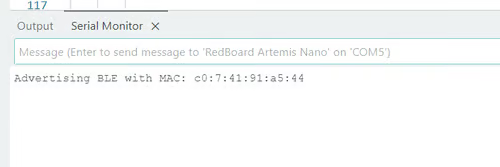
Going through the rest of the setup, I first got the MAC address from my arduino using the ble_arduino.ino file from the codebase. The MAC adress is screenshotted below.
Codebase
I was able to cleanly unzip the lab codebase into my project directory. From reading through the code base I first found that it is essentially split into 2 different sections, one for the arduino and one for the computer on python. For the arduino the main piece of code is an .ino file that sets up BLE and allows for characteristics to be initialized. This .ino also provides the basic functionalities of being able to read data, write data, and also listen for any connections. Then reading through the python part of the code base, specifically the ble.py and demo.ipynb I found that the python code base is used for intializing the connection to the Artemis and sending instructions to the Artemis, and it has useful functions to scan, send commands, and recieve data from the Artemis, and since this is in python this will also allow for easy parsing and manipulation of the data.
Configuration
First I updated the MAC address in connections.yaml to the MAC address I got from the prelab as follows.
artemis_address: 'c0:7:41:91:a5:44'
Next I used the code given in a python notebook to generate a UUID and placed that UUID in the connections.yaml file and ble_arduino.ino file as follows respectively.
ble_service: '34d66db7-fb82-4a1b-a60a-923a2442615d'
#define BLE_UUID_TEST_SERVICE "34d66db7-fb82-4a1b-a60a-923a2442615d"
I double checked that the UUIDs match and that the CommandTypes match between both the python and the arduino libraries as well. I then ran through the demo.ipynb, I first ran into an issue where none of the cells were working due to library and connection errors, but with TA help I was able to find that the issue was because I didn't scroll high enough on demo.ipynb and didn't run the intialization cells to set up the connection, and I need to ensure to do that in the future. Below are images showing my results.
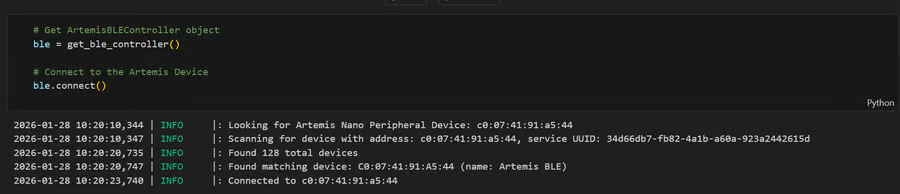
Successful Connection shown below.
Demo Python commands sent and the responses recieved below.
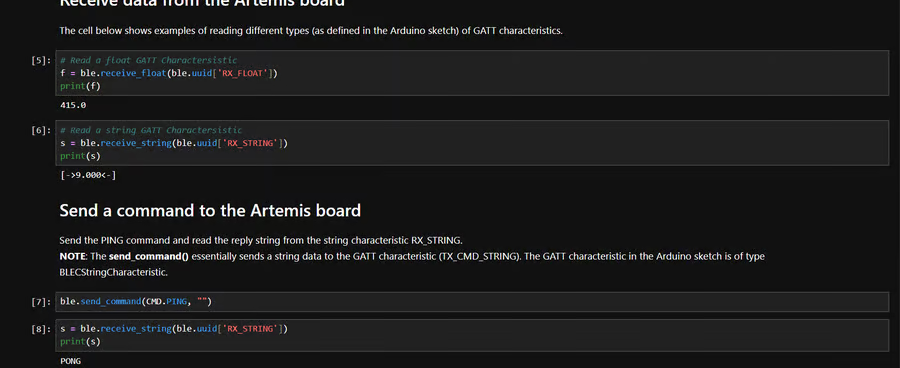
Demo code sent into Artemis from python and the response given by arduino.
ble.send_command(CMD.SEND_TWO_INTS, "2|-6")
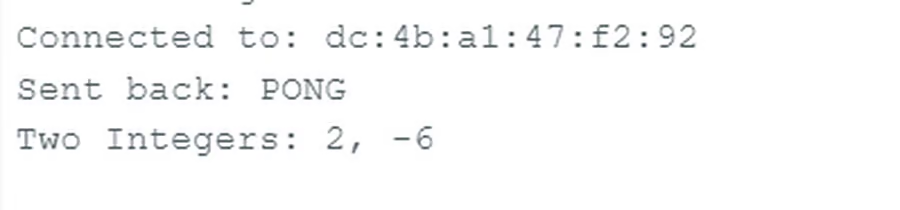
All demo tasks ran successfully.
Tasks
For the python code here, I used the same initializion sequence of library imports and connection commands as the demo.ipynb.
Echo
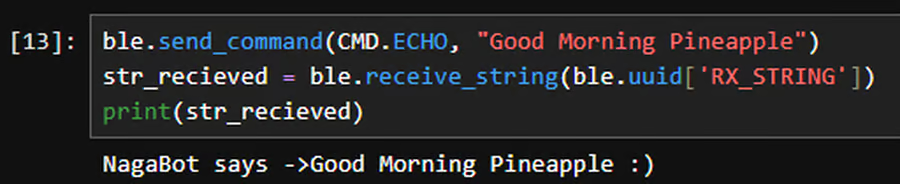
In this task I wrote code to send a string value from the python script to the Artemis using the ECHO command that is given as part of the code base. I also coded the Artemis to append the recieved string to a phrase and then return that new string. Then on the python side I used the recieve string command to print out the string that is recieved.
My python code is below
ble.send_command(CMD.ECHO, "Good Morning Pineapple")
str_recieved = ble.receive_string(ble.uuid['RX_STRING'])
print(str_recieved)
For the Artemis, to the ble_arduino.ino file I added the following code for the ECHO case to recieve the transmitted string and append a predefined string to it.
case ECHO:

            char char_arr[MAX_MSG_SIZE];

            // Extract the next value from the command string as a character array
            success = robot_cmd.get_next_value(char_arr);
            if (!success)
                return;

            tx_estring_value.clear();
            tx_estring_value.append("NagaBot says ->");
            tx_estring_value.append(char_arr);
            tx_estring_value.append(" :)");
            tx_characteristic_string.writeValue(tx_estring_value.c_str());

            break;
The output back to the computer is following.
Get 3 Floats
First for the python script sending command containing the SEND_THREE_FLOATS command and adding 3 floats delineated by the straight line character. I am using a very similar set up to the SEND_TWO_INTS command given as part of the code base, and essentially just switching out the integers for floats. This means that I am intializing 3 floats, and then using the get next value command to get next value to store in the floats. My python code is below
ble.send_command(CMD.ECHO, "Good Morning Pineapple")
For the Artemis, to the ble_arduino.ino file I added the following code.
case SEND_THREE_FLOATS:
    float flt_a, flt_b, flt_c;

    // Extract the next value from the command string as an float
    success = robot_cmd.get_next_value(flt_a);
    if (!success)
        return;

    // Extract the next value from the command string as an float
    success = robot_cmd.get_next_value(flt_b);
    if (!success)
        return;

    // Extract the next value from the command string as an float
    success = robot_cmd.get_next_value(flt_c);
    if (!success)
        return;

    Serial.print("Three Floats: ");
    Serial.print(flt_a);
    Serial.print(", ");
    Serial.print(flt_b);
    Serial.print(", ");
    Serial.print(flt_c);

    break;
The output from the Artemis was as following.

Get Time Millis
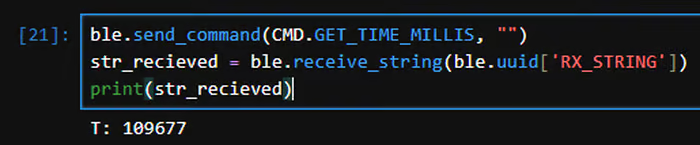
Here I added a new command GET_TIME_MILLIS to the ble_arduino (I added as a new case) and cmd_types.py scripts. For the arduino script I used the millis() command to get the current number of milliseconds and append that to a T: string in the characteristic. On the python side, I passed a blank string with the GET_TIME_MILLIS command and printed out the string that was sent back to the python script. I also ran into an error where I first didn't add GET_TIME_MILLIS into the enum command types at the top of ble_arduino, but after that my new command worked. I also had a scoping issue, I am not sure why, but adding curly brackets around my GET_TIME_MILLIS function solved that problem. Also learned that when adding new commands need to reimport CMD so the new commands show up in python.
My python code is below
ble.send_command(CMD.GET_TIME_MILLIS, "")
str_recieved = ble.receive_string(ble.uuid['RX_STRING'])
print(str_recieved)
For the Artemis, to the ble_arduino.ino file I added the following code for the new case, and also added GET_TIME_MILLIS to the command types near the top of the file.
case GET_TIME_MILLIS: {
    long currtime;
    currtime = millis();
    String timestr = String(currtime);

    tx_estring_value.clear();
    tx_estring_value.append("T: ");
    tx_estring_value.append(timestr.c_str());
    tx_characteristic_string.writeValue(tx_estring_value.c_str());

    break;
}
The output back to the computer is following.
Notification Handler
Here creating a notification handler to recieve string value and then extracting the time from the string. I'm defining a new function to act as the notification handler, and in that function I am going to do string operations to only output the time in milliseconds instead of the whole string. I also have this function discern if it is a time function or not and if it is it will just seperate the millis and print that only.
def notif_handler (uuid, byteArray):
    rec_string = ble.bytearray_to_string(byteArray)
    strArray = s.split(" ") #using space as a delimeter since my output from arduino is T: nnnnn and thus space will split it perfectly

    #using this if statement so that if the recieved string is not the time string it prints the whole thing instead of just the millis
    if strArray[0] == "T:":
        print(strArray[1])
    else:
        print(rec_string)
This is the code I had for starting the recieving. I also had to made sure I only started it once or else it caused repeated outputs.
ble.start_notify(ble.uuid['RX_STRING'], notif_handler) #starting notify with notif handler
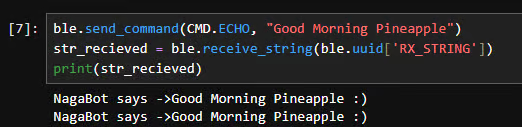
Then by using the command sending the get_millis command, I got the following result.

My handler still preserves outputs for other commands as well as shown below. (printing twice here since code already has a print and my handler does too)
Millis Loop
Here I made a new command called MillisLoop which will call on the Artemis to send millisecond times with numbers prefixed to the time to show the number of commands that are able to be sent.
This is the code I added to the arduino side.
/* Case for Lab 1 Task 5*/
case MILLIS_LOOP: {
    int num = 0;
    unsigned int long startingTime = millis();

    while(millis()-startingTime < 5000){ //doing this loop for 5 seconds for this test
        //using similar string output structure to get_time_millis
        tx_estring_value.clear();
        tx_estring_value.append(num); //to keep count
        tx_estring_value.append(": ");
        tx_estring_value.append((int long) millis());
        tx_characteristic_string.writeValue(tx_estring_value.c_str());
        num++;
    }
    break;
}
My command in Python: "ble.send_command(CMD.MILLIS_LOOP,"")" and that resulted in the following output.
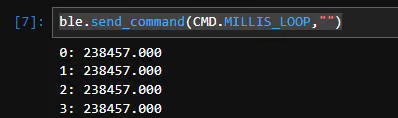
From this I found that 262 values were transmitted starting from 238457.000 to 243419.000 which is 4962 ms giving 18.93 ms per value transmitted, and since most of my strings had 15 bytes that means that each byte took 1.262 ms thus 1000ms/1.262 ms gives 792 bytes/second.
Time Array
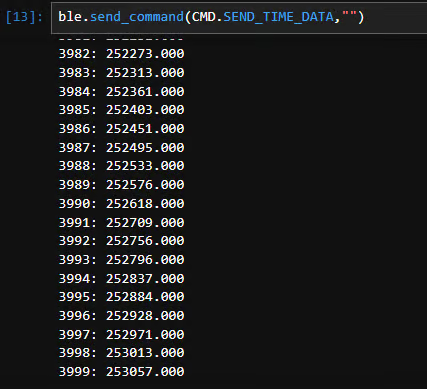
Here I am creating SEND_TIME_DATA to fill a time array, and I am creating the array as a global variable and intializing it to a length of 4000 elements. I'm then adding millis to each of the elements until the array is filled and then using a similar output to MILLIS_LOOP to send back the data to the python script to be displayed.
What I added to the global variables.
const int arraySize = 4000;
float timeArray[arraySize];
This is what I created as part of the SEND_TIME_DATA function on the arduino side.
/* Case for Lab 1 Task 6*/
        case SEND_TIME_DATA: {
            int num = 0;
            long startingTime = millis();

            while ((millis()-startingTime < 5000) && (num < arraySize)){ //doing till 5 seconds or the array is filled
                timeArray[num] = (float) millis();
                num++;
            }

            num = 0;//resetting the number count

            while(num < arraySize){ //doing this loop for 5 seconds for this test
                //using similar string output structure to millis_loop
                tx_estring_value.clear();
                tx_estring_value.append(num); //to keep count
                tx_estring_value.append(": ");
                tx_estring_value.append(timeArray[num]);
                tx_characteristic_string.writeValue(tx_estring_value.c_str());
                num++;
            }
            break;
        }
This is the output that I recieved here showing that all of the data was transmitted.
Time and Temp Array
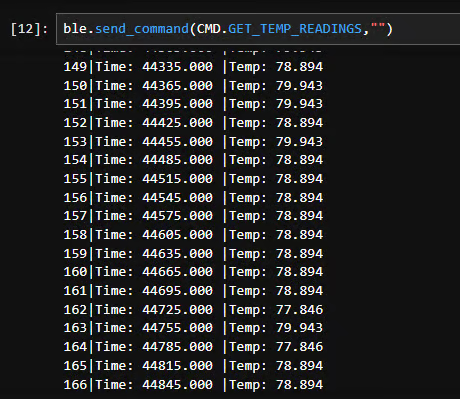
Here the code on the arduino side is going to be very similar to the send time array function but the main difference is going to be that there is also going to be the temp portion added and I am going to make sure that they are written concurrently and when displaying split the different sections with white space so that I am able split it up and display it as I need. I will also edit the notification handler to make a new case where it stores it to a list and displays the strings in a new case. I also added tempArray to the global variables. I also added a delay in the data storing section of 30 ms so that it doesn't fill the array super fast.
Arduino function is below.
/* Case for Lab 1 Task 7*/
        case GET_TEMP_READINGS: {
            int num = 0;
            long startingTime = millis();

            while ((millis()-startingTime < 5000) && (num < arraySize)){ //doing till 5 seconds or the array is filled
                timeArray[num] = (float) millis();
                tempArray[num] = (float) getTempDegF();

                delay(30); //delay to ensure array not filled ot fast and not repeated values
                num++;
            }

            num = 0;//resetting the number count

            while ((num < arraySize) && (timeArray[num] != 0)){ //doing this loop for 5 seconds for this test
                //using similar string output structure to millis_loop
                tx_estring_value.clear();
                tx_estring_value.append(num); //to keep count
                tx_estring_value.append(" Time|Temp: ");
                tx_estring_value.append(timeArray[num]);
                tx_estring_value.append(" ");
                tx_estring_value.append(tempArray[num]);
                tx_characteristic_string.writeValue(tx_estring_value.c_str());
                num++;
            }
            break;
        }
The changed notification handler.
def notif_handler(uuid, byteArray):
    rec_string = ble.bytearray_to_string(byteArray)
    strArray = rec_string.split(" ") #using space as a delimeter since my output from arduino is T: nnnnn and thus space will split it perfectly

    #using this if statement so that if the recieved string is not the time string it prints the whole thing instead of just the millis
    if strArray[0] == "T:":
        print(strArray[1])
    elif strArray[1] == "Time|Temp:":
        print(strArray[0] + "|Time: " + strArray[2] + " |Temp: " + strArray[3])
    else:
        print(rec_string)
This is the final result that I got out of this by calling the function.
Which Method is Better?
I think that the method used in part 5 is more effective when you want to do concurrent processing because the artemis will transmit the data as soon as it is ready which means that the python script can start processing that very fast. On the other hand the second method is much better for faster processing on the Artemis because it can store and do things with results much faster than it can transmit that data, so this would be better for doing a batch of processing onboard and then transmitting the result. The second method can record data almost instantly as seen in the time loop because the 4000 cell array filled within the second that I sent the command which is really fast. Assuming that I'm storing things as floats which is 4 bytes, the 384 kB is 384000 bytes and thus I can store 96000 floats, so my array can be 96000 elements long (assuming no other overheads).
Discussion
I think the biggest thing that I took away from the lab was how many different components go into making all of the devices I use daily talk to eachother, even making the Artemis talk in small chunks to my computer was hard, I can't imagine the amount of work it would take to make something like bluetooth headphones work. I think the thing that still stumps me and a big challenge is the scope issue I had on task 3 for 1B, I'm not sure why that arose, and I'm curious to figure out a fix for that. I overall learned how to communicate across python and the Artemis with bluetooth, how to add my own commands, and how to set up my environment for future development.
Collaboration
I referenced Trevor Dales, Sarah Grace Brown, and Lucca Correia's websites for issues I faced in Lab 1B. I used Google Gemini to help me understand compile errors, and to trouble shoot image addition to my website. I used Daria's guide on Zola to create the website.